![Omr_reviews_Logo_Black_Rgb_2000px_w_72ppi (2)-3.png]](https://hi.omr.com/hs-fs/hubfs/Omr_reviews_Logo_Black_Rgb_2000px_w_72ppi%20(2)-3.png?height=40&name=Omr_reviews_Logo_Black_Rgb_2000px_w_72ppi%20(2)-3.png)
When buyers on OMR Reviews show interest in your product, that inquiry appears in the Leads section of your product page in OMR Manager. There, you’ll find everyone who has reached out to you through your profile, sorted by recency and filterable by type. This article shows you where to find the section, which leads appear there, what factors determine this, and how to best work with them.
In this article, you’ll find the following content 👇
Which Leads end up in the Leads Section
In the Leads Section, you'll see everyone who has actively reached out to you through your OMR Reviews profile or requested content from you. There are three types, and they all appear in the same feed:
|
Lead-Type |
What the person did |
What this says about their interest |
|---|---|---|
|
Contact Request |
Filled out and submitted the contact form on your profile |
Wants to talk to you, often with a specific question in the message field |
|
Price Inquiry |
Requested a custom offer via the offer CTA |
Currently in the evaluation phase and reviewing the budget and terms |
|
Download Documents |
Has downloaded a document from the Downloads section of your profile |
Researches the topic, but this usually happens earlier in the process |
In all three cases, the individuals provided their contact information themselves, so these are not anonymous signals. For downloads, the double opt-in process also applies; contact information is only shared after confirmation.
This is different from the buyer intent data in OMRviewer. There, you can see companies that are researching your profile or category without reaching out. The two complement each other: OMRviewer shows you silent research, while the Leads Section shows you people who have already taken the first step.
How to Find Your Leads in OMR Manager
Log in to OMR Manager and select your product from the left-hand navigation menu. In your product’s sub-navigation, you’ll find the “Leads” entry, on the same level as Profile, Reviews & Campaigns, Resources, and Settings.
Leads are always product-specific. If you manage multiple tools in OMR Manager, each product has its own Leads section. As an agency with a Business Service profile, you’ll find the section in the same place in your profile’s navigation.
In addition, you’ll receive a notification in OMR Manager for every new lead. Clicking the button in the notification takes you directly to the Leads section without having to navigate there yourself.

The Lead Feed in Detail
The feed displays all leads for your product, with the most recent ones at the top.
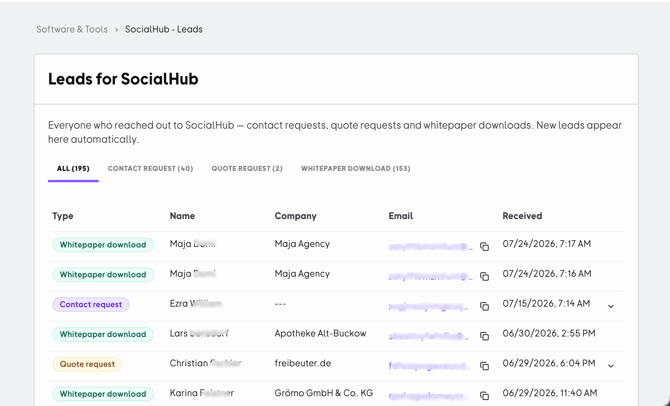
Leads Section in OMR Manager: Tab filters by lead type and an overview of all incoming leads.
The Tabs as Type Filters
Use the tabs to switch between All, Contact Request, Price Quote, and Document Download. The number of leads for each type is displayed next to each tab, so you can immediately see where most of your inquiries are coming from.
The Columns in the List
-
Type → a colored chip indicating the lead type, so you can instantly distinguish between rows even in the “All” tab
-
Name → First and last name of the person
-
Company → If provided. If this information is missing, a placeholder appears
-
Email → The stored email address, with a copy icon right next to it
-
Received → Date and time of the inquiry
Leads that haven’t been opened yet are marked in the feed. This way, you can see at a glance what’s been added since your last visit.
Expand Details
Leads with additional information have an arrow on the right. Clicking it expands the row and displays the fields that don’t fit in the overview: Message, Position, and Phone Number, if the person provided them.
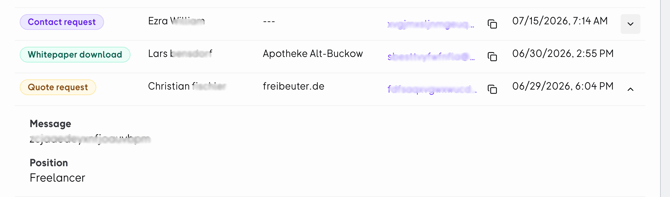
Expanded row of a price inquiry showing the message and position.
This message is your most important reference point when following up, because it tells you what the person is actually looking for.
Copy Email Address
Use the icon next to the address to copy the email to the clipboard without having to select it. This is the fastest way to get it from the list into your email program or CRM.
A note on duplicates: If the same person downloads two documents, two entries will appear. Each row represents an action, not a person. This is intentional, as it allows you to see what someone has shown interest in multiple times.
Who can view the leads in the team and who is notified
These are two different things, and it’s worth reviewing both.
Access to the Leads section is available to everyone in your organization who has administrative rights for the respective product or business service profile in OMR Manager. If colleagues from Sales are supposed to view the leads, they need their own access.
Email notifications about contact requests and downloads are sent to the addresses you've specified as recipients in your product settings. If the settings still include the address of someone who has left the company, notifications about new leads will go nowhere.
You can always find a complete overview of all leads for your product in the Leads section. The notifications let you know when something new has come in or when work is being done in the OMR Manager.
Best Practices: How to work with incoming leads
Respond within minutes, not days
-
Problem: Inquiries from a profile come in sporadically and are often handled on the sidelines of day-to-day business. By the time someone responds, the person has long since spoken with other providers.
-
Approach: Treat price inquiries and contact requests like a demo request on your own website. Determine who will handle them and within what timeframe. The in-app notification and email distribution list are your two triggers for this.
-
Result: You reach people while they’re still actively comparing options. Research by James Oldroyd, Kristina McElheran, and David Elkington shows that the chance of qualifying an online lead is about seven times higher if you respond within the first hour than if you respond an hour later (Harvard Business Review, 2011). This advantage is realistic to achieve: In a 2024 test by RevenueHero, in which demo requests were sent to 1,000 B2B SaaS websites, 63.5% of the companies did not respond at all, and those that did took more than a day on average.
Categorize by Lead Type instead of treating everyone the same
-
Problem: When every lead receives the same standard email, price inquiries come across as undervalued and downloads as oversold. Both erode trust.
-
Approach: Use the “Type” filter to categorize leads. For a price inquiry, address terms and conditions directly and suggest a conversation. For a contact request, first answer the question from the message field—it’s in the expanded line. For a document download, the context is the document’s topic, not your product; a helpful follow-up tip works better here than an offer.
-
Result: Your first message addresses the person’s specific situation. This increases the likelihood of a response and prevents you from burning bridges early on with an approach that’s too pushy.
Transferring Leads to your own system
-
Problem: The Leads section shows you who has reached out, but it’s no substitute for a CRM. If you only track leads in the list, you’ll lose track of them as soon as multiple people on your team are involved.
-
Procedure: Set a regular schedule for checking the section—for example, in the morning and early afternoon. Use the copy button to grab the address with a single click, then transfer the remaining fields to your CRM or sales list. The unread indicator lets you know where you left off last time.
-
Result: Every lead has an assigned owner and a status in your own system, and no one falls through the cracks between the list and follow-up.
If you want to automatically import signals from OMR Reviews into your systems, integrating the OMRviewer is the way to do it.
Interpreting Downloads as a Signal for your Content
-
Problem: The download section is populated once and then never looked at again, even though it consistently generates leads.
-
Approach: Check the Downloads tab to see which documents are generating inquiries and which companies they’re coming from. If this aligns with your target audience, it’s worth creating another document along the same lines. If it doesn’t, the document is likely better suited for a different audience.
-
Result: You expand your download section based on actual demand, rather than guessing what buyers are interested in.